

When people say their Android phone has a “virus,” they are usually describing a specific behavior, not a system-wide infection. Android malware is real, but it does not behave like old desktop viruses that spread freely and take over everything. It follows patterns. It depends on user action. And in most cases, it is contained.
Android remains a target because it allows flexibility: app choice, sideloading, permissions, and customization. That flexibility is also why most Android issues are reversible without panic. Understanding what is actually happening is the difference between fixing the problem cleanly and wiping your phone unnecessarily.
This guide focuses on reality, not myths. What these threats look like today, what actually works to remove them, and how Android users avoid repeating the same issue.
What Android Malware Actually Looks Like
Not all Android malware behaves the same way, and treating everything as a “virus” leads to bad decisions. In practice, Android threats fall into three clear categories, each with very different risk levels.
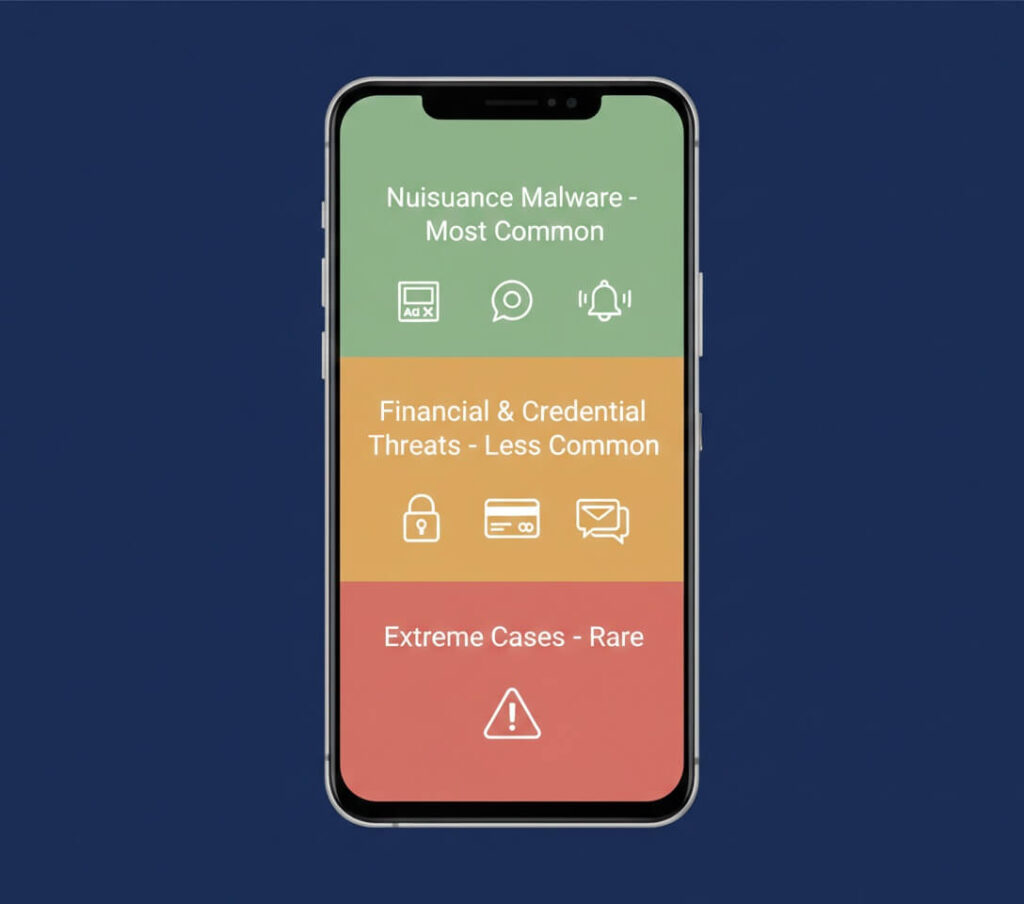
Nuisance malware is the most common
Adware overlays, persistent browser pop-ups, notification spam, fake cleaners, launchers, and wallpaper apps that flood the screen with ads. These apps do not infect the operating system. They abuse permissions such as notifications, overlays, or accessibility access.
Recent security reporting shows adware remains the dominant Android problem, especially around high-install periods like holidays. Families such as Triada and similar adware loaders still rely on deceptive installs and sideloaded APKs, not system exploits. The phone feels broken, but the damage is superficial.
Financial and credential threats are less common, but more serious
Banking trojans and SMS stealers aim for one thing: credentials. They often disguise themselves as updates, delivery notices, or legitimate apps. Once installed, they watch for banking activity or intercept messages.
In 2025, threats like Frogblight reinforced a trend already underway: Android malware is shifting from noise to theft. These threats do not destroy phones. They quietly wait for interaction. Importantly, they still require user installation and permissions. They do not appear out of nowhere.
Extreme cases exist, but they are rare
Ransomware-style Android malware, such as device lockout variants reported late in 2025, represents the far end of the spectrum. These cases are real, but they almost always involve malicious websites or sideloaded installs outside the Play Store. They are not representative of everyday Android use.
The key insight is hierarchy. Most users face nuisance apps. A smaller group faces credential theft. Very few encounter device-locking malware. Treating all three the same leads to overreaction.
How to Remove Android Malware Safely and Correctly
Effective removal follows order, not panic. Skipping steps or jumping straight to extreme actions creates more problems than it solves.
1. Safe Mode Is the Fastest Reality Check
Booting into Safe Mode temporarily disables all third-party apps while keeping the Android system itself running. If abnormal behavior stops in Safe Mode, the issue is app-based. This prevents unnecessary resets and confirms where the problem lives.
- Press and hold the Power button to open the power menu
- Press and hold Power off until the Safe Mode prompt appears
- Tap Confirm / OK
- Wait for the phone to restart
- Look for “Safe mode” on the screen once booted
If the Safe Mode prompt does not appear:
- Power off the phone
- Turn it back on
- Press and hold Volume Down as soon as the logo appears until the device finishes booting
What to check in Safe Mode:
- Wait briefly for the system to load
- Use the phone normally (system apps, browsing, notifications)
- If ads, pop-ups, redirects, or screen takeovers no longer occur, the issue is caused by an installed app
Exiting Safe Mode:
- Restart the phone normally
2. Removing the Offending App Solves Most Cases
With the issue confirmed as app-based, the next step is targeted removal.
Open the full app list in system settings and review apps installed shortly before the behavior began. Prioritize unfamiliar apps and utilities with broad permissions, such as launchers, cleaners, wallpaper apps, or “optimization” tools. These categories account for most Android adware and permission abuse.
If an app refuses to uninstall, it is usually blocking removal through granted control, not embedded in the system. Open Accessibility and Device admin settings, revoke access for the app, then uninstall it normally. Restart the phone after removal and monitor behavior.
When the correct app is removed and the phone is restarted, ads and abnormal behavior stop.
3. Platform Defenses Should Be Used Correctly
After the offending app is removed, platform defenses help confirm cleanup and reduce the risk of recurrence.
Google Play Protect runs continuously and should remain enabled to detect known threats, flag harmful behavior, and monitor permission abuse.
To verify cleanup with Play Protect:
- Open the Play Store
- Tap your profile icon
- Select Play Protect
- Ensure Play Protect is turned on
- Run a scan
If Play Protect was disabled, re-enable it before scanning.
Check for system and security updates:
- Open Settings
- Go to System
- Select Software update
- Install any available Android updates
Optional account check:
You can also review account activity and sign-in protection using Google’s Security Checkup: https://myaccount.google.com/security-checkup.
Third-party antivirus apps can add value as a secondary verification step, especially for users who sideload apps. They do not replace judgment or safe installation habits. In this workflow, their role is verification rather than the primary removal method.
For typical consumer Android threats, device cleanup can be considered complete.
4. Factory Reset Is a Last Resort
A factory reset is appropriate only after Safe Mode testing, app removal, and verification fail. It is a recovery action, not a diagnostic step, and should never be used first.
Proceed only if all of the following are true:
- The problem continues in Safe Mode
- No third-party app can be identified or removed after review
- Platform defenses find nothing conclusive
- The device shows persistent system instability or corruption
If the issue disappeared in Safe Mode, a factory reset is not justified.
What to do before resetting (critical):
- Back up personal data only (photos, contacts, messages)
- Do not back up apps or system settings
- Review recently added accounts and remove only those you do not recognize
- Keep your primary Google account signed in unless the device explicitly requires removal during reset
How to perform a factory reset:
- Open Settings
- Go to System → Reset options
- Select Erase all data (factory reset)
- Confirm and allow the device to wipe and restart
How to restore safely after reset:
- Set up the phone as new
- Restore data only, not apps
- Reinstall apps manually from the Play Store
- Avoid sideloading or restoring APKs
- Review permissions carefully as apps are reinstalled
What a factory reset does not do:
- It does not remove bad habits
- It does not fix permission abuse if the same apps are reinstalled
- It does not protect against future installs
Its only role is clearing a damaged or unstable state when all other steps fail.
Final Take
Android malware is not unstoppable or invisible. It depends on predictable entry points: sideloaded apps, excessive permissions, fake updates, and rushed installs. The most damaging problems come from misunderstanding, not from technical sophistication.
The data shows threats are evolving, but defenses are evolving alongside them. Play Protect is stronger. Permission controls are tighter. Most Android issues remain contained and reversible when handled calmly and in order.
Avoiding repeat problems is not about fear or constant scanning. It is about habits. Stick to trusted sources. Question permissions that do not match app function. Treat sudden behavior changes as signals, not emergencies.
When users understand what Android malware actually is, they stop reacting emotionally and start fixing problems correctly. That is the difference between frustration and control.